
AI Assisted Coding
DISCLAIMER
While AI assistants can be helpful in development, they may sometimes provide incorrect or incomplete information. Always verify AI-generated code and suggestions against the official documentation and test thoroughly.
Cursor
If you are using Cursor as your IDE, you can load the Caido documentation websites into your workspace so that Cursor becomes aware of the Caido SDK:
- Open Cursor and click
Viewin the menu bar and selectCommand Palette(or useCTRL + Shift + P) and search for:
text
Add New Custom Docs- Select the option and enter the documentation URL:
text
https://developer.caido.io/- Provide a reference name and click
Confirm.
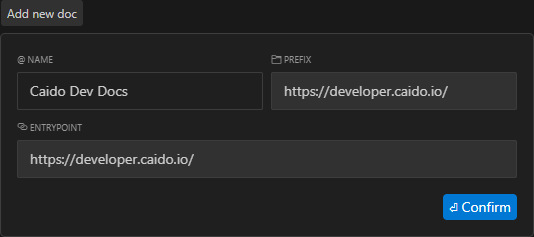
- Cursor will index the website allowing you to reference the documentation in prompts by using
@<reference name>.
TIPS
Add
https://github.com/caido/sdk-jsto Cursor as well so it has the SDK alongside the developer documentation examples.Also add
https://docs.caido.io/to Cursor so you can reference interfaces for context.You can also customize prompt responses by navigating to
Settings,Rules, and writing your preferences in theUser Rulesinput field.